



Active Geo-Replication for Azure SQL DBs and its failover
This blog guides you through the process of setting up geo-replication for Azure SQL Database and covers the procedures for both failover and failback operations
Geo-replication for Azure SQL Database functions similarly to the secondary replica feature in the “Always On” mode of an on-premises SQL server. It serves as a disaster recovery (DR) solution for scenarios like regional outages or extended server downtime. This feature allows you to establish a secondary copy of your Azure SQL Database in a different region. Notably, it’s possible to create up to four secondary replicas, either within the same region or in various regions.
Now, let’s delve into the steps for creating and configuring geo-replication.
Prerequisites:
- Both the primary and secondary databases must be of the same tier.
- The databases should have identical compute sizes, whether in DTUs or vCores.
Create Azure SQL server and Azure SQL Database
- Navigate to the Azure portal.
- Create an Azure SQL server along with a database, ensuring you select a pricing tier of Standard S0 or higher.
Upon completion, your database setup should resemble the following:

Active geo-replication:
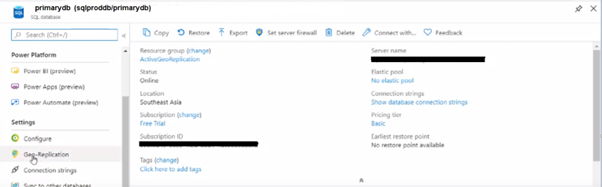
To enable geo-replication, go to database under setting then click on Geo-Replication
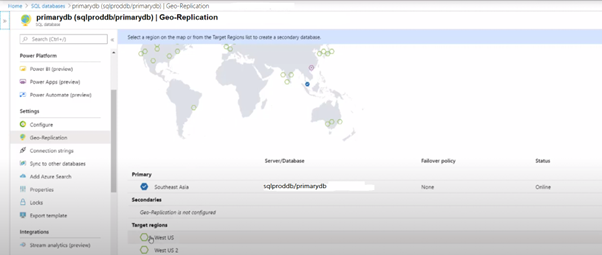
Under “Geo-Replication,” select your target region, in this instance, choose “West US.” After selecting the target region, click on “Target Server,” input the server name as “sqldrdb,” and ensure you select the same pricing tier. Then click “OK.”
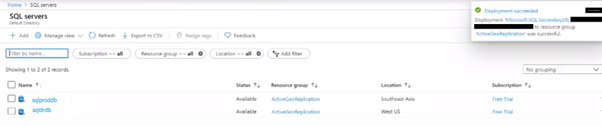
Following these steps, the deployment of the DR server will commence. In a short while, the new DR server will be operational. You’ll then see both SQL servers displayed.
Data validation:
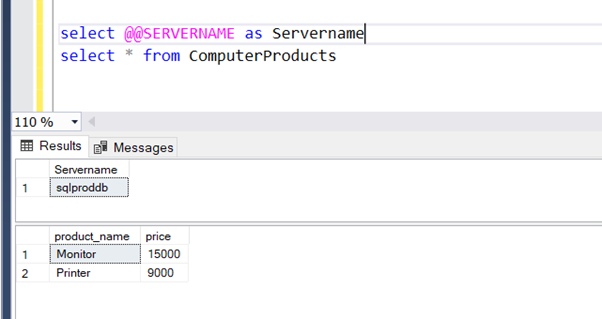
To verify, create a table on sqlproddb.primarydb (source database) and populate it with records using the provided scripts. Validate that there are only two records in ComputerProducts table.
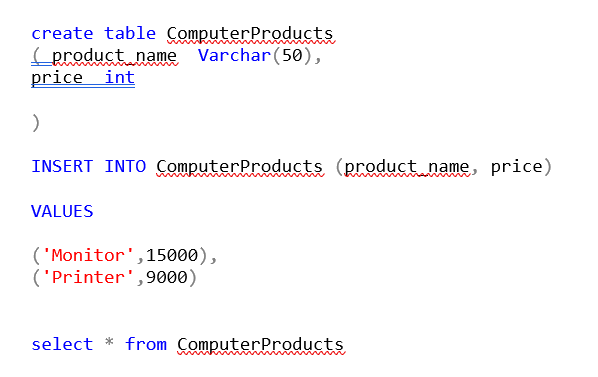
Now, run a select query on the destination sqldrdb.primarydb. If the records match between the source and destination databases, it confirms that every record is instantly replicated to the destination DR database.

Initiating database failover:
- To initiate a failover for the Azure SQL Database:
- Navigate to the Azure portal and select the SQL database.
- Click on “Geo-Replication,” select the secondary server, and choose “Forced Failover.”
- When prompted to confirm, click “Yes.
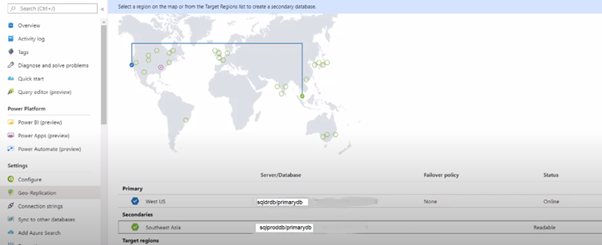
Upon clicking “Yes,” the primary server ‘sqlproddb’ will transition to a secondary role, and the secondary server ‘sqldrdb’ will assume the primary position.
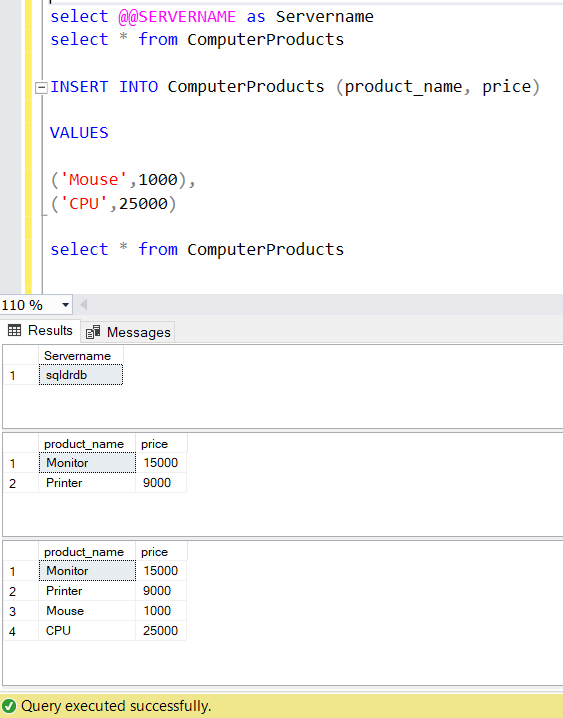
Now, to verify accurate replication, check the database tables. Add a few more records to the current primary database, ‘sqldrdb.primarydb’, and compare the records before and after the new entries.
select * from ComputerProducts –Validate the table before inserting new records
INSERT INTO ComputerProducts (product_name, price)
VALUES
(‘Mouse’,1000),
(‘CPU’,25000)
select * from ComputerProducts –Validate the table after inserting new records
Run the following select query to verify the records on the DR server’s table.
select * from ComputerProducts
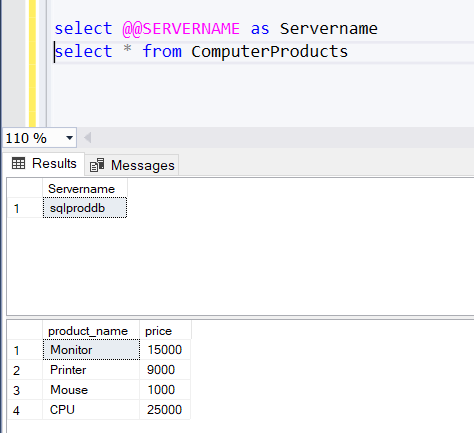
We found that records get replicated instantly.
This guide detailed the process of setting up active geo-replication for Azure SQL Database. Users can establish up to four read-only secondary copies of the Azure SQL Database. If the primary database encounters issues, an automatic failover will trigger. Additionally, there’s the option to manually failover the database to another region, designating the secondary database as the primary.
More from Rackspace Insights
From Data Rich to Insight Rich: A Cloud Charter for 2025
AI and data governance are evolving together, and enterprise leaders face three key priorities: proactive AI governance, privacy-first data sharing
Read article
Integrate Oracle EBS with OAM
Integrate Oracle EBS with OAM
Read article
Set up an SSH tunnel to access the Oracle WLS Administration Console
Set up an SSH tunnel to access the Oracle WLS Administration Console
Read article
Introduction to Change Data Capture (CDC)
Introduction to Change Data Capture (CDC)
Read article